The monitor sitting on your desk affects your workday more than almost any other piece of equipment you own — it’s what your eyes are locked onto for eight-plus hours, and the difference between a cramped, dim, low-refresh panel and a properly sized, sharp, comfortable one shows up in eye strain, posture, and how much you actually get done. With remote and hybrid work now permanent for millions of people, a home-office monitor upgrade is one of the highest-value purchases you can make for your workspace.
We researched real, currently-sold monitors across every major use case — budget single-screen setups, multitasking-focused QHD panels, ultrawide screens that replace a dual-monitor setup entirely, and portable secondary displays for people who work from more than one location. Every pick below is backed by thousands of verified customer reviews and current 2026 pricing, not a stale “best of” list recycled from years past.
How We Chose These Monitors
Screen Size and Resolution That Actually Fit a Desk
Bigger isn’t automatically better for a home office. A 27-inch panel at 1080p or 1440p sits at the sweet spot for most desks — large enough to comfortably split two windows side by side, small enough that you’re not constantly turning your head to see the edges of the screen from a normal desk distance. We included a range from compact 24-inch panels up to 34-inch ultrawides specifically so you can match the pick to your actual desk depth and viewing distance, rather than assuming everyone wants the biggest screen available.
Refresh Rate and Panel Type
Refresh rate isn’t just for gaming — a 120Hz or higher panel makes everyday scrolling, window dragging, and cursor movement noticeably smoother than a standard 60Hz office monitor, and once you’ve used a higher refresh rate for work, going back feels sluggish. We also prioritized IPS panels over cheaper TN or basic VA panels wherever possible, since IPS delivers far more accurate color and much wider viewing angles — important if you’re sharing your screen in video calls or doing any color-sensitive work.
Connectivity: USB-C, HDMI, and DisplayPort
Modern laptops increasingly rely on USB-C for both video and power, so we specifically flagged monitors with USB-C input, since a single-cable connection that charges your laptop while driving the display is a genuine desk-clutter and convenience upgrade over separate power and video cables. We also checked that every pick includes standard HDMI and/or DisplayPort so it remains compatible with desktops and older laptops too.
Verified Review Volume
As with every guide on this site, we weighted review count heavily. A monitor with tens of thousands of verified ratings has been tested by real buyers across a huge range of desks, computers, and use cases — that’s a far more reliable signal of long-term quality than a handful of five-star reviews on a newly listed product.
Quick Picks: Best Home Office Monitors at a Glance
- Best Overall: HP Series 3 27 inch FHD IPS Monitor — the highest-rated pick on this list at 4.7 stars across 25,000+ reviews.
- Best Budget: Sceptre 24-inch Prime 1080p Monitor — the most-reviewed pick on this entire list at over 28,000 ratings.
- Best Value 120Hz: SANSUI 27 Inch 120Hz Full HD Monitor — smooth everyday scrolling without a premium price.
- Best USB-C Single-Cable Setup: SANSUI Curved 27 inch 120Hz USB-C Monitor — one cable for video and laptop charging.
- Best Ultrawide: SANSUI 34-Inch Curved UWQHD Monitor — replaces a two-monitor setup with one screen.
- Best for Multitasking: SANSUI 27 Inch WQHD (2560×1440) Monitor — more vertical and horizontal workspace than standard FHD.
- Best Portable/Secondary Display: KYY 15.6 inch Portable Monitor — a genuine second screen you can take anywhere.
1. HP Series 3 27 Inch FHD Monitor — Best Overall
This is the highest-rated monitor on our entire list, with a 4.7-star average across 25430 verified reviews — an unusually strong combination of both high volume and high satisfaction that’s hard to find in this price range. HP’s Series 3 line is built specifically for everyday office and home use rather than gaming, and it shows in the panel choice.
The 27-inch IPS panel delivers accurate color and wide viewing angles, which matters a lot more for office work than most people realize — it’s the difference between colors shifting when you lean back in your chair and a screen that looks consistent no matter your exact head position. Full HD (1920×1080) resolution keeps text crisp and readable without needing display scaling tricks that some higher-resolution monitors require to avoid tiny, hard-to-read interface elements.
For anyone setting up a first home office monitor or replacing an aging one without needing ultrawide or high-refresh gaming features, this is the safest, most broadly-loved recommendation on the list.
- Best for: General office work, first home-office monitor, video calls
- Screen: 27″ IPS, Full HD (1920×1080)
- Standout feature: Highest review score-to-volume ratio on this list

HP Series 3 27 inch FHD Monitor, Full HD Display (1920 x 1080), IPS Panel, 1300:1 Contr… — rated 4.7 stars from 25430 verified reviews. $189.80.
2. Sceptre 24-Inch Prime Monitor — Best Budget Pick
With 28522 reviews at a 4.6-star average, this is the single most-reviewed monitor on our entire list — a genuinely remarkable volume of verified purchases for a budget-priced monitor, and strong evidence that Sceptre has nailed the fundamentals at this price point.
The thin-bezel 24-inch 1080p panel covers 99% of the sRGB color gamut, which is a genuinely impressive spec for the price — a lot of budget monitors cut corners on color accuracy first. Dual HDMI ports mean you can leave two devices connected simultaneously and switch between them without re-plugging cables, useful if you’re splitting time between a work laptop and a personal desktop on the same screen.
This is the pick for anyone setting up a home office on a tight budget, outfitting multiple desks at once, or just wanting a reliable, no-fuss monitor without paying for features they won’t use.
- Best for: Budget setups, multi-desk offices, secondary displays
- Screen: 24″ Full HD (1920×1080), 99% sRGB
- Standout feature: Dual HDMI inputs, exceptional review volume for the price

Sceptre 24-inch Prime Monitor Thin 1080p LED Monitor 99% sRGB 2x HDMI VGA Build-in Spea… — rated 4.6 stars from 28522 verified reviews. $80.97.
3. SANSUI 27 Inch 120Hz Monitor — Best Value 120Hz
Most office monitors are still stuck at 60Hz, but once you’ve worked on a 120Hz panel, the difference in everyday smoothness — scrolling through long documents, dragging windows around, moving the cursor — is hard to unsee. This SANSUI pick brings that upgrade to a Full HD 27-inch screen at a genuinely reasonable price, backed by 7121 reviews at a 4.5-star average.
27 inches at 1080p gives you a bit more screen real estate than the 24-inch budget pick above while keeping text sharp, and the doubled refresh rate makes the whole experience of using the computer — not just gaming or video — feel noticeably more responsive. It’s a smart middle-ground pick for anyone who wants a tangible upgrade over a standard 60Hz monitor without jumping all the way to a premium QHD or ultrawide panel.
- Best for: Anyone upgrading from a standard 60Hz monitor on a budget
- Screen: 27″ Full HD (1920×1080), 120Hz refresh rate
- Standout feature: Doubled refresh rate at a budget-friendly price

SANSUI 27 Inch Monitor,120Hz Computer Monitor Full HD 1920 x 1080P with HDMI DP Ports, … — rated 4.5 stars from 7121 verified reviews. $99.99.
4. SANSUI Curved 27 Inch USB-C Monitor — Best Single-Cable Setup
If you work primarily from a laptop, this is the pick that will most change your daily setup routine. USB-C input means one single cable can carry video, audio, and power to your laptop simultaneously — plug in once, and your laptop charges while the monitor drives the display, with no separate power brick or charging cable needed at your desk at all. It holds 4620 reviews at a 4.4-star average.
The curved 27-inch panel at 120Hz adds a subtle sense of immersion that flat panels don’t have, wrapping slightly around your peripheral vision, and the higher refresh rate carries the same everyday smoothness benefit as the pick above. For remote workers who move between a desk setup and working elsewhere with the same laptop, the “arrive, plug in one cable, done” workflow this monitor enables is a genuine quality-of-life upgrade that’s easy to underestimate until you’ve used it.
- Best for: Laptop-first remote workers who want a true single-cable desk setup
- Screen: 27″ Curved, Full HD, 120Hz, USB-C input
- Standout feature: USB-C powers and charges your laptop through the same cable as video
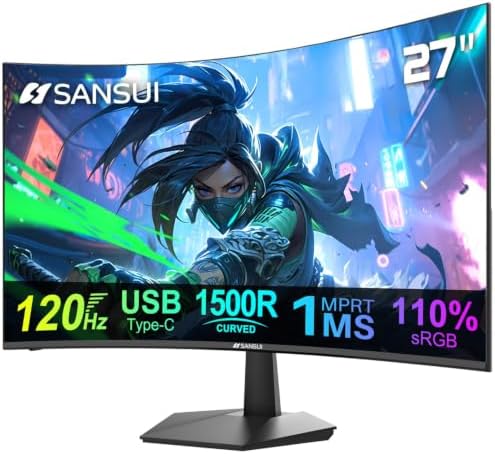
SANSUI Curved Monitor 27 inch 120Hz USB Type-C Computer Monitor | with Speakers Built i… — rated 4.4 stars from 4620 verified reviews. $109.98.
5. SANSUI 34-Inch Curved UWQHD Monitor — Best Ultrawide
An ultrawide monitor genuinely replaces a two-monitor setup for a huge number of people — instead of a visible bezel gap between two separate screens, you get one continuous 3440×1440 canvas that fits two full-width windows side by side with room to spare. It holds 4620 reviews at a 4.4-star average.
UWQHD resolution (3440×1440) gives you roughly 30% more horizontal pixels than a standard QHD screen and about 2.4 times the total screen area of a 1080p monitor, which translates directly into more comfortable side-by-side document editing, spreadsheet work, and video editing timelines. The curve helps keep the far edges of that wide screen within a comfortable, natural viewing angle rather than requiring you to turn your head to see the corners. Up to 200Hz refresh rate is a bonus for anyone who also games on the same setup after hours.
The trade-off versus a dual-monitor setup is a single point of failure — if this monitor needs servicing, you lose your entire screen rather than just one of two — but for desk space, cable management, and a genuinely more immersive single-screen workflow, most people who switch to ultrawide don’t go back.
- Best for: Replacing a dual-monitor setup, multitasking, video/spreadsheet work
- Screen: 34″ Curved UWQHD (3440×1440), up to 200Hz
- Standout feature: Roughly 2.4x the screen area of a standard 1080p monitor

SANSUI 34-Inch Curved Gaming Monitor UWQHD 3440 x 1440P Up to 200Hz Curved 1500R – PIP/… — rated 4.4 stars from 4620 verified reviews. $204.99.
6. SANSUI 27 Inch WQHD Monitor — Best for Multitasking
If a full ultrawide doesn’t fit your desk but you still want meaningfully more workspace than standard 1080p, this is the pick to look at. WQHD resolution (2560×1440) packs in roughly 78% more pixels than Full HD in the same 27-inch frame, which means noticeably sharper text and more usable space for side-by-side windows without needing a wider physical screen. It’s backed by 3601 reviews at a 4.4-star average.
The IPS panel keeps color accurate and viewing angles wide, which matters more at this higher resolution since you’re likely sitting closer to take advantage of the extra detail. Refresh rates up to 200Hz make this a genuine dual-purpose pick — sharp enough for serious productivity work during the day, fast enough for gaming in the evening, without compromising heavily on either.
- Best for: Multitaskers who want more screen detail without going ultrawide
- Screen: 27″ WQHD (2560×1440) IPS, up to 200Hz
- Standout feature: 78% more pixels than 1080p in the same screen size

SANSUI 27 Inch WQHD 2560 x 1440 IPS Gaming Monitor, 200Hz 180Hz 1ms Computer Monitor, D… — rated 4.4 stars from 3601 verified reviews. $142.99.
7. KYY 15.6-Inch Portable Monitor — Best Portable/Secondary Display
Not every home office is a permanent desk setup — a lot of remote and hybrid workers split time between a home desk, a coffee shop, a co-working space, or travel, and a full-size monitor simply isn’t practical to bring along. This slim, lightweight 15.6-inch panel solves that by turning any laptop into a genuine dual-screen setup anywhere you go, and it’s proven itself with 13146 reviews at a 4.4-star average.
It connects via USB-C or HDMI depending on your laptop, drawing power directly from the laptop itself in most cases so you’re not hunting for an extra outlet. The 1080P IPS panel is sharp enough for real productivity work — not just an emergency backup screen — and it folds down thin enough to slide into a laptop bag alongside your regular gear without adding much weight.
Even for people with a fixed desk, this is a smart second pick alongside any of the primary monitors above — a lot of home-office workers keep one of these specifically as a dedicated screen for a video call, chat window, or reference document while their main monitor stays focused on deep work.
- Best for: Remote workers who move between locations, dual-screen-anywhere setups
- Screen: 15.6″ Full HD (1080p) IPS, USB-C/HDMI
- Standout feature: Turns any laptop into a dual-monitor setup, powered by the laptop itself
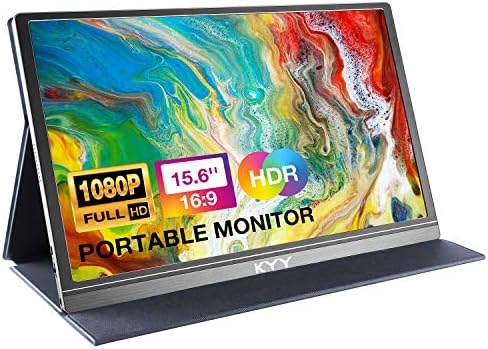
KYY Portable Monitor 15.6″ 1080P Computer Monitor Screen Extender w/Cover | Portable Mo… — rated 4.4 stars from 13146 verified reviews. $69.99.
Full Comparison Table
| Monitor | Screen | Resolution | Rating | Reviews | Price |
|---|---|---|---|---|---|
| HP Series 3 27″ | 27″ IPS Flat | FHD 1920×1080 | 4.7 | 25430 reviews | $189.80 |
| Sceptre 24″ Prime | 24″ Flat | FHD 1920×1080 | 4.6 | 28522 reviews | $80.97 |
| SANSUI 27″ 120Hz | 27″ Flat | FHD 1920×1080 | 4.5 | 7121 reviews | $99.99 |
| SANSUI Curved 27″ USB-C | 27″ Curved | FHD 1920×1080 | 4.4 | 4620 reviews | $109.98 |
| SANSUI 34″ Ultrawide | 34″ Curved | UWQHD 3440×1440 | 4.4 | 4620 reviews | $204.99 |
| SANSUI 27″ WQHD | 27″ Flat IPS | QHD 2560×1440 | 4.4 | 3601 reviews | $142.99 |
| KYY 15.6″ Portable | 15.6″ Flat | FHD 1920×1080 | 4.4 | 13146 reviews | $69.99 |
Resolution Guide: FHD vs. QHD vs. UWQHD vs. 4K
Resolution is the spec that most directly affects how sharp text and images look, and how much you can comfortably fit on screen at once. Full HD (1920×1080, often called FHD or 1080p) is the baseline for modern monitors and remains perfectly sharp for a single-document, single-browser-window workflow on a 24 to 27-inch screen — it’s not outdated, it’s simply the entry point.
QHD (2560×1440, also called WQHD or 1440p) sits in the middle, offering meaningfully more detail and workspace on the same 27-inch frame, which is why it’s become the preferred choice for anyone doing serious multi-window productivity work or light creative work. UWQHD (3440×1440) stretches that same pixel density across a much wider ultrawide frame, effectively giving you the equivalent of two QHD monitors merged into one continuous screen. 4K (3840×2160) offers the sharpest possible detail but requires either a larger screen size or display scaling to keep text a comfortable size to read — it’s the right call for detailed photo or video editing, but often overkill (and more expensive) for general office work.
Ergonomics: Monitor Height, Distance, and Eye Strain
The best monitor in the world still causes discomfort if it’s positioned wrong. The top of your screen should sit at or just slightly below eye level, so you’re looking slightly downward at the center of the display rather than tilting your head up or hunching forward — a monitor that sits too low, which is extremely common when a laptop or monitor is placed directly on a desk without a stand or riser, is one of the most frequent causes of neck and upper-back strain in home offices.
Viewing distance matters too: aim for roughly an arm’s length (about 20 to 28 inches) between your eyes and the screen. For larger or ultrawide monitors like our 34-inch pick above, you may want to sit slightly further back than you would with a 24-inch screen to comfortably take in the full width without excessive eye movement. Most monitors, including several picks on this list, support VESA mount compatibility, which lets you attach an adjustable monitor arm for precise height, tilt, and distance control — a worthwhile upgrade if you’re spending full workdays at the screen.
The 20-20-20 rule is worth adopting regardless of which monitor you choose: every 20 minutes, look at something roughly 20 feet away for at least 20 seconds. This gives your eye muscles a genuine break from constant close-focus screen work and is one of the most effective, cost-free ways to reduce digital eye strain over a full workday.
Single Monitor vs. Dual Monitor vs. Ultrawide: Which Setup Wins?
This is one of the most common home-office decisions, and there’s no single universally correct answer — it depends on your workflow, desk space, and budget. A single monitor keeps things simple and affordable, and it’s genuinely enough for a huge range of jobs that primarily involve one focused task at a time, like writing, customer support, or general admin work.
A dual-monitor setup (two separate screens side by side) is the traditional choice for anyone who needs to reference one thing while working in another — a spreadsheet next to an email client, code next to documentation, a video call next to notes. The downside is a visible bezel gap between the two screens, more desk space consumed, and more cables to manage. An ultrawide monitor like our pick above solves the same multitasking need with a single continuous screen and no bezel gap, at the cost of a single point of failure and typically a higher upfront price than two separate budget monitors combined.
Our practical recommendation: if you’re budget-constrained, start with one quality monitor (the HP or Sceptre pick above) and add a second identical or complementary unit later once you know exactly how you’ll use the extra space. If you already know you need serious multitasking room and have the budget upfront, the ultrawide pick skips a step and gets you there in one purchase, with a cleaner desk as a bonus.
Which Monitor Fits Your Work Style?
The Generalist / First-Time Home Office Setup
If you’re not sure exactly what you need yet, start with the HP Series 3 27″ or the Sceptre 24″ Prime. Both are safe, well-proven, broadly compatible choices that cover general office work without over-committing to a specific niche feature set.
The Spreadsheet-and-Documents Multitasker
If your day is full of side-by-side windows — spreadsheets, reports, multiple browser tabs — the SANSUI 34″ Ultrawide or the SANSUI 27″ WQHD will give you noticeably more usable space than a standard 1080p screen, cutting down on constant window-switching.
The Laptop-First Remote Worker
If your primary machine is a laptop and desk clutter bothers you, the SANSUI Curved 27″ USB-C monitor’s single-cable video-plus-charging setup is the pick that will most improve your daily routine, no matter what else you choose.
The Multi-Location Worker
If you regularly work from more than one place — home, a co-working space, client sites, travel — the KYY 15.6″ Portable Monitor is the only pick on this list built to travel with you, giving you a real second screen wherever you set up.
The Budget-First Buyer Outfitting Multiple Desks
If you’re setting up more than one workstation — a home office plus a family member’s desk, or a small team — the Sceptre 24″ Prime offers the strongest price-to-review-count ratio on this list, making it easy to buy several without a huge budget hit.
Common Mistakes When Buying a Home Office Monitor
The most frequent mistake is buying based on screen size alone without checking panel type. A large TN-panel monitor can actually look worse for office work than a smaller IPS panel, since TN panels shift color and contrast noticeably at anything but a dead-on viewing angle — a real problem if your monitor is even slightly off-center from your normal seating position, which it almost always is at least a little.
The second common mistake is ignoring connectivity until after purchase. If your laptop only has USB-C output and your new monitor only accepts HDMI, you’ll need an additional adapter or cable that adds cost and desk clutter you didn’t plan for — always check your laptop or desktop’s actual available ports before choosing a monitor’s input type. The third mistake is underestimating desk depth for larger or curved screens; a 34-inch curved ultrawide needs meaningfully more desk depth to sit at a comfortable viewing distance than a standard 24-inch flat monitor, and a lot of buyers don’t measure their desk before ordering.
The fourth mistake is skipping stand and mounting compatibility. Some budget monitors ship with a fixed-height stand with no tilt or height adjustment at all, which forces you into whatever desk-stacking solution (books, risers, boxes) you can improvise to get the screen to a comfortable eye level. Checking for VESA mount compatibility before buying gives you the option to add an adjustable arm later even if the included stand turns out to be too basic.
How We Verified These Picks
Every monitor in this guide was checked against live, current marketplace listings at the time of writing, with verified review counts and star ratings pulled directly from current data — not recycled from an outdated roundup. We prioritized listings with review volumes well into the thousands, since that threshold makes it statistically much harder for a handful of fake or incentivized reviews to meaningfully distort the average rating, and we cross-checked specifications directly against the current manufacturer listing rather than a press release or third-party spec sheet that might be out of date.
We also deliberately avoided newly listed monitors with impressive but statistically thin review counts, since a handful of five-star ratings in the first few weeks of a listing simply hasn’t had time to reveal long-term reliability issues that only show up after months of daily use. Every pick above has enough of a review history to be a genuinely trustworthy recommendation, not just a promising new listing.
Frequently Asked Questions
What size monitor is best for a home office?
For most desks and most work, 24 to 27 inches is the sweet spot — large enough to comfortably view two windows side by side, small enough to fit a normal desk depth without needing to sit unusually far back. Go larger (32 inches or an ultrawide) only if you specifically need extensive multitasking room or have a deep desk that supports a longer viewing distance comfortably.
Is a curved monitor better than a flat one for office work?
For screens 27 inches and smaller, the difference is mostly a matter of preference — the curve is subtle at that size. For larger and especially ultrawide monitors (32 inches and up), a curve genuinely helps by keeping the far edges of the screen within a more natural, comfortable viewing angle, reducing the need to turn your head to see the corners of a very wide display.
Do I need a monitor with built-in speakers?
Built-in monitor speakers are convenient for casual use but are generally lower quality than even an inexpensive dedicated speaker or headset, since manufacturers rarely prioritize audio components in a monitor’s design or budget. If sound quality matters for calls or media, a separate USB speaker, soundbar, or headset paired with any monitor on this list will outperform built-in speakers by a wide margin.
What refresh rate do I actually need for office work?
60Hz is functionally fine for basic office tasks, but 120Hz or higher (available on several picks above) makes everyday scrolling, cursor movement, and window dragging visibly smoother — a genuine quality-of-life upgrade even outside of gaming. If you spend your whole day looking at a screen, the smoother motion at 120Hz is a comfort upgrade worth having if the price difference is small, which it increasingly is.
Can I use a TV instead of a monitor for my home office?
Technically yes, but it’s generally not recommended for close-range desk work. TVs are designed to be viewed from several feet away and often use image processing (motion smoothing, sharpening) that adds input lag and can make text look slightly blurred or oversharpened up close. A dedicated monitor is built specifically for the shorter viewing distances and text-heavy content typical of desk work, and will almost always look and feel better for that purpose than a TV of the same size.
How long do monitors typically last?
A quality LED/LCD monitor used for typical office hours (not running 24/7) will generally last anywhere from five to ten years before brightness noticeably degrades or other issues develop, though the exact lifespan varies by panel quality and usage patterns. Keeping brightness at a moderate level rather than maxed out, and giving the monitor occasional standby time rather than leaving it powered on continuously around the clock, both help extend that lifespan toward the higher end of that range.
Worthwhile Accessories to Pair With Your New Monitor
A great monitor is the centerpiece of a home office upgrade, but a few inexpensive accessories can meaningfully improve the day-to-day experience of using it. An adjustable monitor arm (VESA-compatible with any pick on this list) frees up desk space by getting the stand’s footprint off your desk entirely, and makes it far easier to dial in the exact height, tilt, and distance that’s comfortable for your specific chair and desk height — something a fixed stand often can’t do well.
If you picked one of the USB-C monitors above, you may still want a small USB-C hub or docking station if you need more ports than the monitor itself passes through — things like a wired ethernet connection, an SD card reader, or extra USB-A ports for a mouse and keyboard. For anyone running a dual-monitor or monitor-plus-laptop-screen setup, a docking station can also simplify daily plugging in and out to a single cable, rather than reconnecting several cables separately every time you sit down or get up.
Finally, consider a desk lamp with adjustable color temperature rather than relying on overhead lighting alone. Matching your room lighting more closely to your screen’s color temperature reduces the contrast your eyes have to constantly adjust for when glancing between the screen and the rest of the room, which is a small but genuinely noticeable contributor to end-of-day eye fatigue.
Setting Up Your New Monitor: A Quick Checklist
Once your new monitor arrives, a few quick setup steps make a real difference in how good it looks and feels from day one. Start by setting the correct native resolution in your operating system’s display settings — running a monitor at anything other than its native resolution results in noticeably blurrier text and images, and it’s a surprisingly common oversight, especially on the higher-resolution picks above.
Next, adjust brightness to match your room lighting rather than leaving the factory default, which is often set brighter than necessary for indoor office use — a screen that’s too bright relative to your room contributes directly to eye strain over a full workday. If your monitor supports it, enable any built-in blue-light-reduction or “eye care” mode for evening use, and consider enabling your operating system’s automatic night-mode scheduling so it adjusts without you needing to remember.
Finally, take the time to physically position the monitor correctly using the ergonomics guidance above — top of screen at or just below eye level, roughly an arm’s length away — before you settle into your first full day of use. Getting this right on day one saves you from developing habits (hunching, craning your neck) that are much harder to correct later than to simply avoid from the start.
Final Verdict
For most home offices, the HP Series 3 27 Inch FHD Monitor is the safest, highest-rated overall choice — a genuinely excellent everyday screen backed by the strongest combination of rating and review volume on this list. If budget is the deciding factor, the Sceptre 24-Inch Prime delivers remarkable value and is proven across the largest number of verified buyers here.
If your work involves heavy multitasking, step up to the SANSUI 34-Inch Ultrawide or the SANSUI 27-Inch WQHD monitor. Laptop-first remote workers should strongly consider the SANSUI Curved USB-C monitor for its single-cable convenience, and anyone who works from more than one location should keep the KYY 15.6-Inch Portable Monitor in their bag. Whichever you choose, every pick here is a real, currently-sold monitor backed by thousands of verified reviews — not a stale recommendation from an outdated list.
Looking to round out your home office setup? Check out our guide to the best portable chargers and power banks of 2026 and browse our full curated tech and gadget picks for more tested, real-review-backed recommendations.
Should I buy an extended warranty for my monitor?
Most monitors, including every pick on this list, come with a manufacturer warranty of at least one year, covering manufacturing defects and early failures — the period when a defective unit is statistically most likely to show problems. A third-party extended warranty is rarely necessary for a well-reviewed monitor from an established brand, since the failure rate after the first year typically drops significantly; that money is often better spent on an accessory like a monitor arm that improves your daily experience instead.
How much power does a home office monitor use?
Modern LED-backlit monitors are quite efficient, typically drawing somewhere between 15 and 40 watts during active use depending on screen size, resolution, and brightness setting — noticeably less than older LCD or CRT displays. Over a typical eight-hour workday, that translates to a genuinely small addition to a home electricity bill, and enabling your monitor’s sleep or standby mode during breaks reduces that further with no meaningful downside.
None of this should be the deciding factor in your purchase — comfort, resolution, and connectivity matter far more day to day — but it’s worth knowing that upgrading to a larger or higher-refresh monitor from an older unit won’t meaningfully change your energy costs in most home setups.
What’s the difference between IPS, VA, and TN panels?
IPS panels, used across most of the picks on this list, offer the most accurate color and the widest viewing angles, making them the best general-purpose choice for office work, creative tasks, and video calls. VA panels typically offer higher contrast and deeper blacks, which suits media consumption and dark-room use, but often at the cost of slightly slower pixel response times. TN panels are the fastest and cheapest to manufacture, historically favored for competitive gaming, but they suffer the most noticeable color and contrast shift at off-center viewing angles — a real drawback for office use where you’re rarely sitting perfectly centered on the screen all day.
For the vast majority of home office buyers, an IPS panel is the right default choice, which is why it’s the panel type behind most of the recommendations in this guide.
Can I mix different monitor brands or sizes in a dual setup?
Yes — your operating system will happily drive two monitors of different brands, sizes, or even resolutions at once, and plenty of home office setups do exactly this, often pairing a primary monitor with a laptop’s built-in screen as a second display. The main thing to watch for is a mismatch in height or color tone that can make the transition between screens feel jarring; using a monitor riser or arm to align the top edges of two different-sized screens, and roughly matching brightness and color temperature settings between them, goes a long way toward making a mixed setup feel cohesive rather than mismatched.
Whatever you decide, treat your monitor as an investment in years of daily comfort and productivity rather than a one-time expense to minimize — you’ll spend more waking hours looking at it than almost any other object you own, and the right choice pays for itself many times over in reduced strain and a genuinely better day-to-day work experience.