Affiliate disclosure: TBB 787 is a participant in the Amazon Services LLC Associates Program. If you buy through links on this page, we may earn a commission at no extra cost to you. Our recommendations are based on independent research; no manufacturer paid to be included.
A few years ago, owning a 3D printer meant becoming a part-time mechanic. You leveled the bed by hand with a sheet of paper, tightened belts, tuned settings for hours, and watched a lot of prints fail. In 2026, the best beginner 3D printers calibrate themselves, print far faster than older machines, and are reliable enough that many owners print something useful the same day they unbox the printer. Prices have fallen too: an excellent first printer now costs less than many game consoles.
The challenge is that the market moves quickly. New models appear every few months, names change, and marketing claims about speed and “AI” can be hard to judge. This guide cuts through it. We explain how 3D printing works, compare the best 3D printers for beginners available on Amazon right now, and then give you a complete starter guide: what filament to buy, how to slice your first model, what to print first, and how to fix the most common problems.
Quick Picks: Best 3D Printers for Beginners in 2026
| Printer | Best For | Type | Price on Amazon (Oct 2026) |
|---|---|---|---|
| Bambu Lab A1 mini | Best first 3D printer | Open, compact | About $249 (with LED lamp kit) |
| Bambu Lab A1 Combo | Best beginner multicolor printer | Open, full size, AMS lite | About $419 (with LED lamp kit) |
| Bambu Lab P2S | Best step-up enclosed printer | Enclosed CoreXY | About $569 |
| Bambu Lab P1S | Best enclosed value while stock lasts | Enclosed CoreXY | About $399 |
| ELEGOO Centauri Carbon | Best budget enclosed printer | Enclosed CoreXY | See current price |
| ELEGOO Centauri 2 Combo | Best low-cost four-color printing | CoreXY with CANVAS | About $329 |
| Creality SPARKX i7 Combo | Fast setup with multicolor | Open, CFS Lite | See current price |
| Anycubic Kobra X | Budget multicolor alternative | Open, ACE system | See current price |
| Creality Ender 3 V3 SE | Lowest-cost learning printer | Open | See current price |
| ELEGOO Mars 5 Ultra | Best beginner resin printer | Resin (MSLA) | See current price |
3D printer prices change constantly, with frequent discounts and bundles, especially around Black Friday. Check current prices and bundle contents before you buy.
How 3D Printing Works
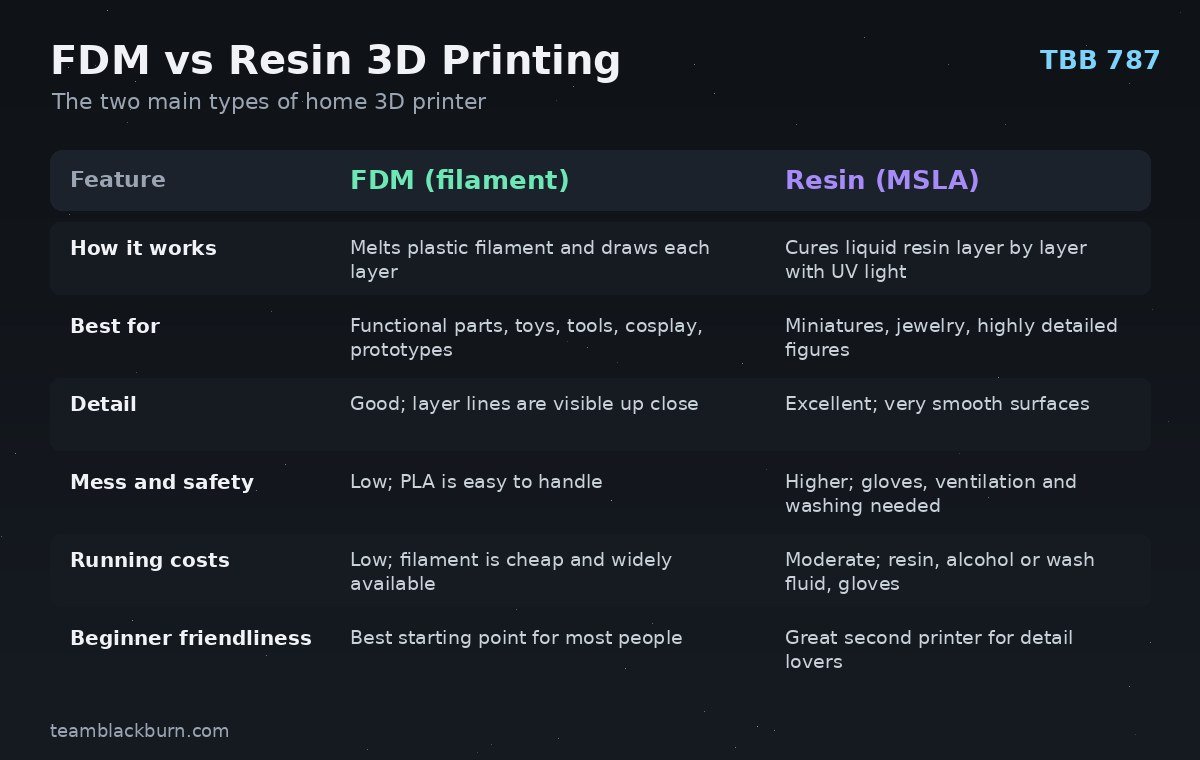
All 3D printers build objects one thin layer at a time from a digital model, a process called additive manufacturing. Home printers use two main technologies.
FDM: filament printers
Fused deposition modeling (FDM), also called fused filament fabrication, is by far the most common home technology. A spool of plastic filament, usually 1.75 mm thick, feeds into a heated nozzle that melts it. The printer moves the nozzle and the build plate precisely, drawing each layer of the object with a thin bead of molten plastic, which cools and hardens. When one layer is finished, the printer moves up slightly and draws the next.
FDM printers are affordable, the materials are cheap and easy to handle, and they produce strong, useful parts: brackets, organizers, toys, cosplay props, replacement parts, planters and prototypes. Fine layer lines are visible up close, but modern printers produce impressively clean results.
Resin: MSLA printers
Resin printers, usually using masked stereolithography (MSLA), shine ultraviolet light through a high-resolution LCD screen into a vat of liquid photopolymer resin. Each layer hardens where the light hits, and the build plate lifts the growing object out of the vat, typically upside down. Resin printers produce extraordinarily fine detail, which makes them perfect for tabletop miniatures, jewelry models and detailed figurines.
The trade-off is mess and safety. Liquid resin is a skin and eye irritant, so you need gloves, ventilation and a process for washing and curing prints. That is why most beginners start with FDM.
A Short History of 3D Printing
3D printing is a much older invention than many people realize. In the early 1980s, the American engineer Chuck Hull developed stereolithography, using ultraviolet light to harden layers of liquid resin into solid objects. He filed for a patent in 1984, received it in 1986, and founded 3D Systems, one of the first 3D printing companies. A few years later, S. Scott Crump invented fused deposition modeling, the filament-based method used by most home printers today, and co-founded Stratasys to commercialize it.
For two decades, these machines cost tens of thousands of dollars and lived in engineering departments. Two events changed that. In 2005, Adrian Bowyer at the University of Bath launched the RepRap project, an open-source effort to design a printer that could print many of its own parts. And around 2009, key FDM patents expired, opening the door for low-cost printers built by startups and hobbyists. A flood of affordable kits followed, and today’s fast, self-calibrating printers are the result of more than a decade of rapid, community-driven improvement. Like the printing press we describe in our story of Gutenberg’s invention, 3D printing is putting the power of production into ordinary hands.
How We Chose These 3D Printers
We did not lab-test every printer ourselves. We compared models using manufacturer specifications, independent expert reviews and testing published by 3D printing publications, current Amazon availability and pricing, the quality of each brand’s software and support, and recurring patterns in owner feedback about reliability. For beginners, we prioritized:
- Automatic calibration: automatic bed leveling, vibration compensation and flow calibration remove most of the tuning that used to frustrate new owners.
- Reliability: printers with a reputation for consistent success out of the box.
- Software: easy slicing, good default profiles, and access to large libraries of ready-to-print models.
- Safety and noise: enclosures, filament runout detection and quiet operation.
- Value and running costs: price, filament compatibility and availability of spare parts.
1. Bambu Lab A1 mini: Best First 3D Printer

- A1 mini + LED Lamp Kit for Creative Light Projects: Bring your ideas to life with the included LED Lamp Kit. Simply prin…
- The Perfect 3D Printer for Beginners: A1 mini 3D Printer is designed to make 3D printing easy from day one with automati…
- Experience the Bambu Lab Ecosystem: Access MakerWorld’s huge library of ready-to-print models, manage prints through the…
If you are buying your first 3D printer and are not sure where to start, the Bambu Lab A1 mini is the safest choice. It is compact, quiet, fast, and almost completely self-calibrating, and it connects to Bambu Lab’s polished software and its MakerWorld library of ready-to-print models, so a complete beginner can go from unboxing to a successful print in well under an hour.
Key details: a 180 by 180 by 180 mm build volume, fully automatic calibration including bed leveling and vibration compensation, print speeds up to around 500 mm/s, a quick-swap nozzle, and compatibility with Bambu’s AMS lite unit for four-color printing (sold as a Combo). The Amazon listing we link includes an LED lamp kit, a fun first project.
Why it is our top pick: The A1 mini removes nearly every pain point that used to make 3D printing frustrating. It levels itself, compensates for vibration, detects filament problems, and produces clean prints with default settings. Its small footprint suits a desk, a dorm room or a child’s bedroom (with supervision), and it is quiet enough to run in a living space.
Limitations: The build volume is small, so large helmets, big storage boxes and tall vases will not fit. It is an open-frame “bed slinger” design, which works well for PLA, PETG and TPU but is not suited to warp-prone materials like ABS and ASA. Bambu’s ecosystem is polished but more closed than open-source alternatives.
- Pros: extremely easy; automatic calibration; quiet; fast; great app and model library; multicolor upgrade path.
- Cons: small build volume; open frame; not for ABS/ASA.
Check the Bambu Lab A1 mini price on Amazon →
2. Bambu Lab A1 and A1 Combo: Best Beginner Multicolor Printer
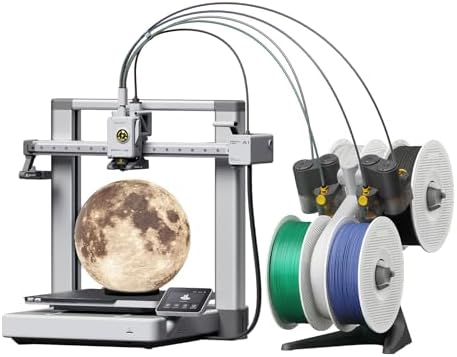
- A1 Combo + LED Lamp Kit for Functional Light Projects: Bambu Lab A1 Combo + LED Lamp Kit lets you create illuminated mod…
- High-Speed Precision: Experience unparalleled speed and precision with the Bambu Lab A1 3D Printer. With an impressive a…
- Multi-Color Printing with AMS lite: Unlock your creativity with vibrant and multi-colored 3D prints. The Bambu Lab A1 3D…
The Bambu Lab A1 is essentially the full-size version of the A1 mini, with a 256 by 256 by 256 mm build volume that fits most hobby projects. The A1 Combo adds the AMS lite, which holds four spools and switches between them automatically during a print, so you can produce multicolor models without painting.
Why choose it: It keeps everything that makes the A1 mini great for beginners, including automatic calibration, quiet operation and Bambu’s software, while giving you room for larger prints. Multicolor printing is genuinely magical for signs, figurines, educational models and gifts.
What to know about multicolor: Single-nozzle multicolor systems purge some filament every time they change color, so prints with many color changes take longer and waste material. For most beginners, multicolor is a fun bonus rather than a necessity.
- Pros: full-size build volume; beginner-friendly; four-color printing with the Combo; quiet; reliable.
- Cons: open frame limits materials; multicolor wastes some filament; uses Bambu’s ecosystem.
Check the Bambu Lab A1 Combo price on Amazon →
3. Bambu Lab P2S: Best Step-Up Enclosed Printer

- High-Speed Precision: The Bambu Lab P2S 3D printer prints up to 600 mm/s while maintaining exceptional accuracy. With th…
- Ready to Print in 15 Minutes: Set up your P2S FDM 3D printer and start printing in just 15 minutes. With AI failure dete…
- Effortless Multi-Color Printing: The AMS 2 Pro enables seamless multi-color/multi-material 3D printing. It features buil…
When you are ready for more speed, more materials and an enclosure, the Bambu Lab P2S is one of the strongest all-round printers available in 2026. It is an enclosed CoreXY printer with a 256 by 256 by 256 mm build volume, a touchscreen, upgraded extrusion and airflow, and compatibility with Bambu’s AMS 2 Pro system for up to 16 colors (the P2S Combo includes an AMS 2 Pro).
Why choose it: The enclosure keeps temperatures stable, which makes materials such as ABS and ASA practical, reduces noise and drafts, and keeps curious hands and pets away from hot parts. CoreXY motion keeps the build plate moving only up and down, allowing high speeds with excellent quality. It is a printer you are unlikely to outgrow.
- Pros: enclosed; fast CoreXY design; wide material support; excellent multicolor option; polished software.
- Cons: costs more than the A1 series; larger footprint; overkill if you only print small PLA parts.
Check the Bambu Lab P2S price on Amazon →
4. Bambu Lab P1S: Best Enclosed Value While Stock Lasts
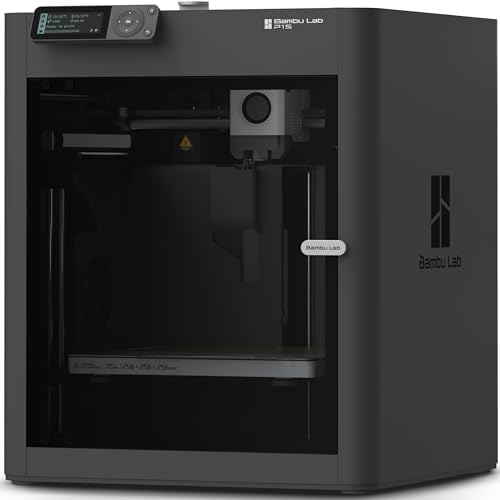
- Up to 16 Colors: Bring your designs to life with vibrant multi-color/multi-material printing capabilities, perfect for s…
- 500mm/s and 20000 mm/s² Acceleration True High Speed: Don’t wait around for your masterpieces. Lightning-fast printing s…
- Enclosed Design: Fully enclosed body improves print performance for advanced filaments. Automatic Bed Leveling: Say hell…
The P1S was one of the most popular enclosed printers of the past few years, and since the P2S launched it has been discounted. It shares the same 256 mm CoreXY enclosed design concept, supports Bambu’s AMS for multicolor printing (the P1S Combo includes an AMS), and remains a capable, reliable machine.
Why choose it: If you want an enclosure on a tighter budget, a discounted P1S is outstanding value. It lacks some of the P2S’s newer refinements, but for most hobbyists it prints beautifully.
- Pros: enclosed CoreXY at a lower price; proven reliability; AMS compatible.
- Cons: older design than the P2S; availability may be limited as stock clears.
Check the Bambu Lab P1S price on Amazon →
5. ELEGOO Centauri Carbon: Best Budget Enclosed Printer

- Print Right Out of the Box: ELEGOO Centauri Carbon arrives fully assembled and pre-calibrated, ready to go right away. W…
- Built for High-Speed Printing: Unlock ultra-fast printing with it’s advanced CoreXY structure, achieving up to 500 mm/s …
- High-Performance Material Ready: Equipped with a 320°C brass-hardened steel nozzle and enclosed chamber with enhanced co…
ELEGOO, best known for resin printers, surprised the industry with the Centauri Carbon, an enclosed CoreXY printer with a 256 by 256 by 256 mm build volume, speeds up to around 500 mm/s, carbon fiber rods in its motion system, automatic bed leveling, a high-temperature nozzle and a filament runout sensor, at a price that undercut most enclosed competitors when it launched.
Why choose it: If you want enclosure benefits (stable temperatures, less noise, better ABS and ASA results) and fast single-color printing on a budget, it is one of the best values available. Expert reviews have praised its out-of-the-box print quality.
- Pros: enclosed at a budget price; fast; good automatic calibration; high-temperature nozzle.
- Cons: software ecosystem less polished than Bambu’s; multicolor requires a different model or add-on.
Check the ELEGOO Centauri Carbon price on Amazon →
6. ELEGOO Centauri 2 Combo: Best Low-Cost Four-Color Printing

- 4-Color Printing with CANVAS: Create vibrant multi-color models effortlessly with CANVAS 4-color printing. Independent m…
- Start Printing with Confidence: Full auto calibration and smart pre-print checks simplify setup, while 22 intelligent se…
- Designed for Speed: Experience faster creation with a high-speed CoreXY system reaching up to 500mm/s and 20,000mm/s² ac…
The Centauri 2 Combo brings four-color printing with ELEGOO’s CANVAS multi-filament system to a full-size 256 mm CoreXY printer at a very aggressive price, which is why it quickly became one of the most popular multicolor printers on Amazon. A standalone Centauri 2 without the multicolor unit is also available.
Why choose it: If multicolor is a priority and your budget is tight, it is one of the cheapest ways to get a full-size four-color printer. Check the listing for details such as enclosure and supported materials, since ELEGOO offers several closely related Centauri models.
- Pros: very affordable multicolor; full-size build volume; fast CoreXY motion.
- Cons: fewer premium features than higher-end printers; multicolor purge waste applies.
Check the ELEGOO Centauri 2 Combo price on Amazon →
7. Creality SPARKX i7 Combo: Fast Setup With Multicolor

- AI Turns Portraits into 3D Models: Say goodbye to complex modeling software. With Creality’s CubeMe AI, sparkx i7 combo …
- Unbox & Start Printing in 5 Mins: From unboxing to your first print in just five minutes. The SPARKX i7 arrives fully pr…
- Multicolor Printing with 50% Less Waste: Upgrade your printing with four-color capability— smoother transitions, faster …
Creality is one of the biggest names in consumer 3D printing, famous for the Ender series. Its SPARKX i7 Combo is aimed squarely at beginners: an open-frame printer with roughly a 260 mm build volume, a CFS Lite four-color filament system with RFID spool recognition, automatic calibration, and AI-based failure detection. Creality says it can be ready to print in about five minutes.
Why choose it: Quick setup, multicolor capability and a full-size build volume at a competitive price make it a strong alternative to the Bambu A1 Combo.
- Pros: fast setup; four-color printing; RFID filament recognition; full-size bed.
- Cons: newer model with a shorter track record; open frame limits materials.
Check the Creality SPARKX i7 Combo price on Amazon →
8. Anycubic Kobra X: Budget Multicolor Alternative

- 【 Newest Level – 19-Color with 4 ACE 2 Pro】Why settle for one color when you can have multicolor? The Kobra X comes born…
- 【 Savings 2X Time】Stop wasting hours and filament on purging! Kobra X impresora 3D reduces the filament and machine trav…
- 【Hardened Precision & High Speed 】 Equipped with a high-durability hardened steel nozzle and vibration compensation, the…
Anycubic’s Kobra X offers native four-color printing through its ACE multi-material system, expandable to many more colors with additional units, along with LeviQ automatic leveling and a hardened steel nozzle on an open-frame design with roughly a 260 mm build volume.
Why choose it: Strong multicolor capability at a budget price, plus a hardened nozzle that handles abrasive filaments better than standard brass.
- Pros: affordable multicolor; expandable color capacity; hardened steel nozzle.
- Cons: open frame; software and ecosystem less polished than the market leader’s.
Check the Anycubic Kobra X price on Amazon →
9. Creality Ender 3 V3 SE: Lowest-Cost Learning Printer

- 250mm/s High-Speed Printing: Print at speeds of up to 250mm/s with 2500mm/s² acceleration, helping you complete prototyp…
- Easy Setup with Auto Leveling: Designed for a fast and straightforward setup, the Ender 3 V3 SE can be assembled in just…
- Proven Sprite Direct Drive Extruder: The upgraded Sprite Direct Drive Extruder provides smooth and consistent filament f…
The Ender 3 series introduced millions of people to 3D printing. The Ender 3 V3 SE modernizes that formula with automatic bed leveling, a direct-drive extruder and faster speeds than older Enders, at one of the lowest prices of any reputable printer.
Why choose it: If your budget is very tight, or you want to learn how 3D printers work mechanically, it is a good starting point with a huge community and plentiful spare parts.
- Pros: very affordable; auto leveling; huge community; easy to repair and modify.
- Cons: slower and less refined than the newer CoreXY and Bambu printers; more manual tuning may be needed.
Check the Creality Ender 3 V3 SE price on Amazon →
10. ELEGOO Mars 5 Ultra: Best Beginner Resin Printer
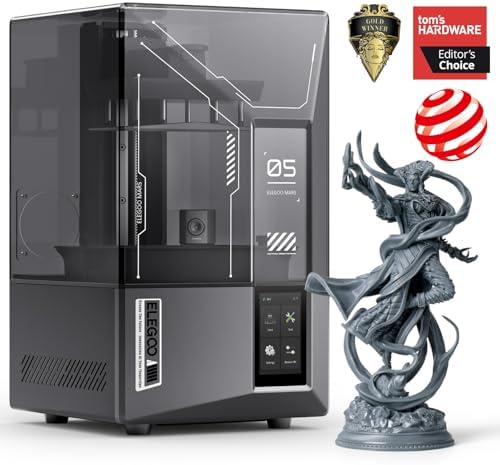
- 【9K High Precision Mono LCD】Featuring a 7-inch mono LCD with 9K ultra-high resolution and 18 μm XY resolution, ELEGOO Ma…
- 【Blazing Fast Speed with Tilt Release Innovation】Boasting a blazing fast speed of up to 150 mm/h, ELEGOO Mars 5 Ultra re…
- 【AI Camera Acts as Your Eyes, Stay in Total Control】Say goodbye to costly failures and wasted time as the AI camera dete…
If you mainly want to print tabletop miniatures, detailed figures or jewelry models, a resin printer delivers detail that FDM cannot match. The ELEGOO Mars 5 Ultra uses a 7-inch 9K monochrome LCD for very fine detail, includes smart automatic leveling and failure detection features, and has a compact build volume suited to miniatures.
Why choose it: It makes resin printing about as simple as it gets, at a reasonable price. For larger resin prints, the ELEGOO Saturn 4 Ultra 16K offers a 10-inch 16K screen and a heated vat for more consistent results.
Remember: resin printing requires nitrile gloves, eye protection, good ventilation, and a way to wash and cure prints, such as the ELEGOO Mercury Plus wash and cure station.
- Pros: exceptional detail; easy leveling; compact; affordable.
- Cons: resin handling and ventilation required; small build volume; extra post-processing steps.
Check the ELEGOO Mars 5 Ultra price on Amazon →
Which 3D Printer Should You Buy? A Quick Decision Guide
If you are still unsure after reading the reviews, match your situation to one of these scenarios.
- “I just want something that works, and I mostly print small things.” Buy the Bambu Lab A1 mini. It is the easiest path from box to successful print.
- “I want to print bigger objects and maybe multicolor models.” Buy the Bambu Lab A1 Combo, or the plain A1 if you want single color for now and might add multicolor later.
- “I live in a small apartment, have kids or pets, or want to print ABS and ASA.” Choose an enclosed printer: the Bambu Lab P2S if budget allows, the ELEGOO Centauri Carbon for less, or a discounted P1S.
- “Multicolor is the main reason I want a printer, and my budget is tight.” Compare the ELEGOO Centauri 2 Combo, the Creality SPARKX i7 Combo and the Anycubic Kobra X.
- “I want to learn how printers work and enjoy tinkering.” The Creality Ender 3 V3 SE is affordable, repairable and has a huge community.
- “I paint miniatures or want jewelry-level detail.” Get a resin printer such as the ELEGOO Mars 5 Ultra, and plan for gloves, ventilation and a wash and cure station.
- “I am buying for a classroom or a teenager.” Choose an easy, reliable machine like the A1 mini or an enclosed printer, and pair it with a beginner design course using free software like Tinkercad.
Designing Your Own Models: A Beginner’s Path
Printing downloaded models is fun, but the real magic happens when you design something that solves a problem in your own life: a bracket that holds a shelf, a replacement part for a broken appliance, a custom organizer for exactly the tools on your desk. Here is a simple path into 3D design.
- Start with Tinkercad. This free, browser-based tool lets you build models by combining and subtracting simple shapes such as boxes, cylinders and spheres. It is used in many schools and is perfect for first designs like name tags, simple boxes and hooks.
- Measure carefully. A pair of digital calipers lets you measure real objects accurately so your parts fit. Measure twice, and note the dimensions in millimeters.
- Design with tolerance. Parts that need to fit together, such as a lid on a box, need a small gap, often around 0.2 to 0.3 mm, because printed parts are rarely perfectly exact. Print a small test piece before committing to a big print.
- Think about printability. FDM printers struggle with overhangs steeper than about 45 degrees and with bridges across large gaps. Design flat bottoms, use chamfers instead of sharp overhangs, and orient parts so the strongest direction aligns with the forces they will face. Layers are weakest where they meet, so avoid putting heavy loads across layer lines.
- Move to parametric CAD. When you want more precise, editable designs, programs such as Fusion and Onshape (both offer free options for hobbyists and students, subject to their current terms) let you design with exact dimensions you can change later.
- Iterate. Professional engineers rarely get a design right the first time. Print, test, adjust and print again. This rapid prototyping loop is exactly what makes 3D printing such a powerful invention tool.
3D Printing for Kids, Students and Classrooms
3D printing is one of the best ways to teach design thinking, geometry, engineering and patience. Students can design a part, see it become real within an hour, discover what does not work, and improve it, which is the same cycle used by inventors and engineers throughout history.
For families and schools, a few guidelines help. Choose a reliable printer with automatic calibration so lessons focus on design rather than troubleshooting. Use PLA, which is the most forgiving and home-friendly material. Place the printer where it can be supervised, ideally an enclosed model in classrooms. Start with short projects that finish within a class period, such as keychains, simple gears or name plates, and build up to multi-part projects. Connecting prints to subjects makes them more meaningful: print molecule models for chemistry, landforms for geography, or a working gear train while studying the Industrial Revolution and the steam engine.
Can You Make Money With a 3D Printer?
Many people hope a 3D printer will pay for itself, and it can, but it is worth being realistic. Here are common ways hobbyists earn money, along with the caveats.
- Custom and personalized items: name signs, custom keychains, cake toppers, pet tags and personalized gifts sell well on platforms like Etsy and at local markets. Success depends on design quality, good photos and customer service.
- Replacement parts and repairs: designing hard-to-find replacement parts for appliances, vintage equipment or vehicles can be valuable locally.
- Prototyping for small businesses: local inventors and makers often need quick prototypes.
- Selling your own designs: some designers sell digital files or offer paid memberships on model platforms.
- Tabletop gaming: painted miniatures and terrain can command good prices if your painting skills are strong.
Important: only sell prints of designs you created or have a license to sell. Many free models online are licensed for personal, non-commercial use only, and printing trademarked characters or logos for sale can infringe intellectual property rights. Also factor in your time, filament, electricity, failed prints and platform fees. For most people, a 3D printer is a rewarding hobby first and a side income second.
Simple Maintenance Checklist
- Before most prints: keep the build plate clean and free of fingerprints; check that the filament path is clear.
- Weekly (with regular use): clean debris from the printer, check that belts are not loose, and inspect the nozzle for buildup.
- Monthly: follow your manufacturer’s guidance on lubricating rods or rails, check fans for dust, and look for firmware updates.
- As needed: replace worn nozzles (they wear faster with abrasive filaments), replace the build plate surface if it becomes damaged, and keep spare parts such as a nozzle on hand.
A well-maintained printer will run reliably for years, and many brands sell spare parts directly through Amazon and their own stores.
Comparison Table
| Printer | Build Volume (approx.) | Frame | Multicolor | Best Materials |
|---|---|---|---|---|
| Bambu Lab A1 mini | 180 x 180 x 180 mm | Open | Yes, with AMS lite | PLA, PETG, TPU |
| Bambu Lab A1 / A1 Combo | 256 x 256 x 256 mm | Open | Yes, Combo includes AMS lite | PLA, PETG, TPU |
| Bambu Lab P2S | 256 x 256 x 256 mm | Enclosed CoreXY | Yes, with AMS 2 Pro | PLA, PETG, TPU, ABS, ASA and more |
| Bambu Lab P1S | 256 x 256 x 256 mm | Enclosed CoreXY | Yes, with AMS | PLA, PETG, TPU, ABS, ASA |
| ELEGOO Centauri Carbon | 256 x 256 x 256 mm | Enclosed CoreXY | Not built in | PLA, PETG, TPU, ABS, ASA |
| ELEGOO Centauri 2 Combo | 256 x 256 x 256 mm | CoreXY | Yes, CANVAS four-color | Check listing |
| Creality SPARKX i7 Combo | About 260 x 260 x 255 mm | Open | Yes, CFS Lite | PLA, PETG, TPU |
| Anycubic Kobra X | About 260 x 260 x 260 mm | Open | Yes, ACE system | PLA, PETG, TPU |
| Creality Ender 3 V3 SE | About 220 x 220 x 250 mm | Open | No | PLA, PETG, TPU |
| ELEGOO Mars 5 Ultra | Compact resin vat | Resin | No | Photopolymer resin |
Specifications are from manufacturer listings and independent reviews and may vary by version or bundle. Always confirm details on the current listing.
3D Printer Buying Guide: What Matters for Beginners
Bed slinger or CoreXY?
On “bed slinger” printers, such as the Bambu A1 series and Ender 3, the build plate moves back and forth while the print head moves side to side and up. They are simple and affordable but need more front-to-back space, and very tall prints can wobble. On CoreXY printers, such as the P2S and Centauri Carbon, the print head moves in both horizontal directions and the bed only moves down, which allows higher speeds and usually comes with an enclosure. CoreXY printers tend to cost more.
Do you need an enclosure?
For PLA, PETG and TPU, which are what most beginners print, an enclosure is not necessary. If you want to print ABS or ASA (heat-resistant, outdoor-friendly plastics), an enclosure keeps temperatures stable and prevents warping and cracking. Enclosures also reduce noise, protect prints from drafts, help contain fumes when paired with filtration, and keep children and pets away from hot moving parts.
Build volume
A build volume around 256 mm per side handles the vast majority of hobby prints. A compact printer like the A1 mini is perfectly fine for small objects, toys and organizers, and large projects can often be split into parts and glued. Go bigger only if you know you want to print helmets or large props in one piece.
Automatic calibration
This is the single biggest quality-of-life feature for beginners. Look for automatic bed leveling at minimum. The best printers also calibrate vibration compensation and extrusion flow automatically, which dramatically improves first-print success.
Multicolor: fun but optional
Multi-material systems (Bambu’s AMS, Creality’s CFS, Anycubic’s ACE and ELEGOO’s CANVAS) let you print in several colors by automatically switching filaments. They are wonderful for signs, figures and gifts, but each color change takes time and purges some filament. If you mostly print functional single-color parts, save money and skip it; most systems can be added later.
Software and model libraries
You will use slicer software to prepare every print, so a good slicer matters. Bambu Studio and the open-source OrcaSlicer are excellent; Creality Print, ELEGOO’s slicer and Cura are also widely used. Integrated libraries such as Bambu’s MakerWorld, along with sites like Printables and Thingiverse, give you millions of free models with print profiles.
Open versus closed ecosystems
Bambu Lab offers the most polished, plug-and-play experience, but its ecosystem is more closed. Brands like Creality, ELEGOO and Anycubic are generally more open to third-party software and modifications. For most beginners, ease of use matters more, but tinkerers may prefer openness.
Running costs
The printer is only part of the cost. A 1 kg spool of good PLA typically costs roughly $15 to $25 and prints a surprising number of small objects. Budget also for a spare nozzle, glue stick or cleaning supplies, and, for resin, resin, gloves and cleaning fluid.
Do not be fooled by speed claims
Many printers advertise top speeds of 500 or 600 mm/s. Those figures describe the fastest the print head can move in ideal conditions, not how quickly a typical print finishes. Real-world print time depends on acceleration, cooling, the size and complexity of the model, the material, and the quality you want. Small, detailed parts and materials like TPU must print slowly regardless of the printer’s maximum speed. That said, modern printers with input shaping genuinely finish typical prints two to four times faster than older machines at similar quality, which is a real improvement. When comparing printers, reliability and print quality at sensible speeds matter far more than the biggest number on the box.
Filament Types Explained
- PLA: the easiest material and the best place to start. It prints at low temperatures, barely warps, has little odor, and comes in countless colors and finishes. It softens in hot cars and direct sun, so it is not ideal for outdoor or high-heat parts. A reliable starting spool is ELEGOO PLA filament.
- PETG: tougher and more heat-resistant than PLA, with good layer adhesion. Great for functional parts and outdoor use. It can string a bit more, which slicer settings can reduce.
- TPU: flexible, rubber-like filament for phone cases, gaskets and grips. Print it slowly.
- ABS and ASA: strong and heat resistant; ASA is UV resistant for outdoor use. Both need an enclosure and good ventilation because they warp and release fumes.
- Composites (carbon fiber filled, nylon): very strong engineering materials that often require hardened nozzles and enclosed printers. Not for your first month.
Keep filament dry. Many filaments absorb moisture from the air, which causes stringing, bubbles and weak prints. Store spools in sealed bags with desiccant, and consider a filament dryer such as the SUNLU S2 filament dryer if you live somewhere humid.
Your First Week With a 3D Printer
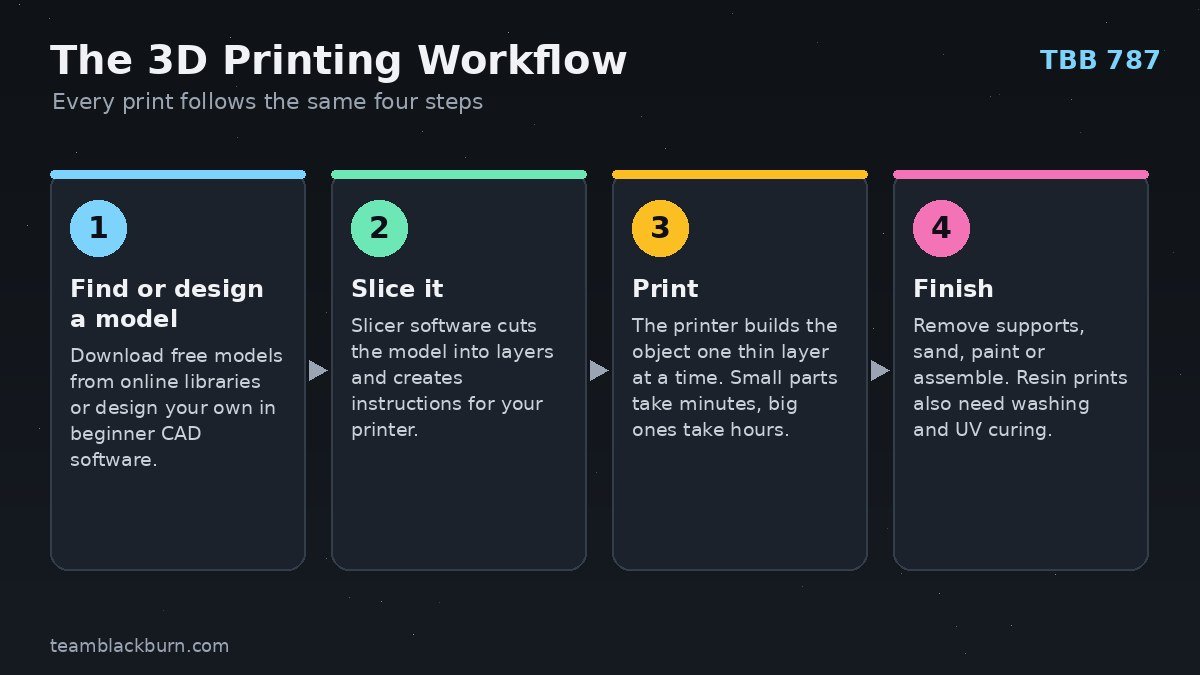
Day 1: Set up and print the sample
Unbox carefully, remove all shipping screws and foam, and follow the quick-start guide. Run the automatic calibration. Most printers come with a test file on their storage or in their app; print it first, because it is tuned to work.
Day 2: Install your slicer and print a model from a library
Install the recommended slicer, select your printer profile, and download a simple, popular model from MakerWorld, Printables or Thingiverse. Popular models have been printed thousands of times, so they are likely to work well.
Day 3: Learn the key slicer settings
- Layer height: 0.2 mm is the standard balance of speed and quality. Smaller layers (0.12 mm) look smoother but take longer.
- Infill: the internal pattern inside a print. 10 to 20 percent is fine for decorative items; 30 to 50 percent or more for strong functional parts.
- Walls (perimeters): more walls make parts stronger, often more effectively than more infill.
- Supports: temporary structures that hold up overhangs. Tree supports are usually easier to remove.
- Brim: a thin extra edge around the first layer that helps small or tall parts stick to the bed.
Day 4 to 7: Print useful things
Now the fun begins. Print things you will actually use, and try one new skill at a time: a part that needs supports, a print in PETG, a multi-part model you assemble, or a multicolor print if you have a multi-material system.
20 Great First Things to 3D Print
- A cable organizer or cable clips for your desk
- A phone or tablet stand
- Drawer dividers and small parts organizers
- A headphone hook that mounts under a desk
- Replacement knobs, feet or clips for household items
- A planter or self-watering pot
- A personalized keychain or name tag
- Bag clips for snacks
- A desk pen holder
- Wall hooks and hangers
- A flexible articulated dragon or fidget toy (print-in-place)
- Board game organizers and inserts
- A spool holder or other printer upgrades
- Cookie cutters (use food-safe practices and materials)
- A Raspberry Pi or electronics enclosure
- A model of a famous invention, such as a working gear set or a miniature steam engine
- Educational models: DNA helices, molecules, planets, or a topographic map
- A lithophane photo that reveals an image when lit from behind
- Cosplay accessories or props
- Gifts: custom ornaments, coasters or figurines
If you enjoy building electronics, 3D printing pairs perfectly with microcontrollers. Our guide to the best Arduino starter kits for beginners shows how to build circuits you can house in your own printed enclosures.
Common 3D Printing Problems and Fixes
- Print will not stick to the bed: clean the build plate with warm soapy water or isopropyl alcohol (finger oils are a common cause), run calibration again, slow down the first layer, add a brim, and make sure you are using the right plate side and temperature for your material.
- Warping (corners lifting): common with ABS and large flat parts. Use an enclosure, add a brim, avoid drafts, and make sure the bed temperature is correct.
- Stringing (fine hairs between parts): usually caused by wet filament or temperatures that are too high. Dry the filament and lower the nozzle temperature slightly.
- Spaghetti (a tangled mess): the print detached or a support failed. Many modern printers detect this automatically and pause. Check adhesion and supports.
- Layer shifts: the print suddenly offsets sideways. Check for collisions, loose belts or speeds that are too high for the model.
- Under-extrusion (gaps and weak layers): often caused by a partial clog, tangled filament, or wet filament. Check the spool, clean or replace the nozzle, and dry the filament.
- Clogged nozzle: heat the nozzle and use the cleaning tools provided, or swap the nozzle. Quick-swap hotends make this easy.
- Elephant’s foot (bulging first layer): the first layer is squished too much. Recalibrate or slightly reduce first-layer flow.
3D Printing Safety
- Ventilation: printing releases small particles and fumes, especially ABS, ASA and resin. Print in a well-ventilated room, ideally not where people sleep, and use enclosures with filters where possible.
- Resin handling: always wear nitrile gloves and eye protection with resin, avoid skin contact, and never pour resin or wash fluid down the drain. Cure waste resin in sunlight before disposal according to local rules.
- Heat: nozzles reach over 200 degrees Celsius and beds can exceed 60 degrees. Keep children and pets away while printing.
- Fire safety: buy reputable printers, keep firmware updated, avoid leaving printers running unattended for long periods when you first get them, and keep a smoke detector nearby.
- Kids: 3D printing is a fantastic learning tool for children with adult supervision. Enclosed printers are safer for homes with young kids.
Useful Accessories
- Quality PLA filament in a few colors
- A filament dryer for humid climates and moisture-sensitive materials
- A 3D printing tool kit with flush cutters, a deburring tool and spatulas
- Digital calipers for measuring parts you want to design or replace
- For resin: a wash and cure station, nitrile gloves and isopropyl alcohol or a recommended wash fluid
Where to Find Free 3D Models
You do not need to design anything to get great use from a printer. These platforms host millions of free models:
- MakerWorld: Bambu Lab’s library, tightly integrated with its printers and slicer, with many models that include tested print profiles.
- Printables: run by Prusa Research, known for high-quality models, contests and an active community.
- Thingiverse: one of the oldest and largest repositories, with a huge archive of functional and fun designs.
- Brand libraries: Creality, ELEGOO and Anycubic also run their own model libraries and apps.
When choosing a model, look at the number of downloads and “makes,” read the comments for tips, and check the license if you plan to share or sell prints.
3D Printing Glossary for Beginners
- Slicer: software that converts a 3D model into layers and machine instructions (G-code) for the printer.
- G-code: the list of movement and temperature commands the printer follows.
- Build plate (bed): the surface the print is built on, often a removable, flexible steel sheet with a textured or smooth coating.
- Hotend and nozzle: the heated part that melts filament and the small opening (usually 0.4 mm) it comes out of.
- Extruder: the motorized mechanism that pushes filament into the hotend. Direct-drive extruders sit on the print head; Bowden extruders push filament through a tube.
- Layer height: the thickness of each layer, commonly 0.2 mm.
- Infill: the internal pattern that fills the inside of a print, expressed as a percentage.
- Perimeters (walls): the outer shells of a print.
- Supports: removable structures that hold up overhanging features during printing.
- Brim and raft: extra material around or under the first layer to improve adhesion.
- Bed leveling: making sure the nozzle is the same height above the bed everywhere, now usually automatic.
- Input shaping (vibration compensation): a technique that measures and cancels printer vibrations so it can print fast without ringing artifacts.
- Retraction: pulling filament back slightly during travel moves to prevent stringing.
- CoreXY: a motion system where the print head moves in X and Y and the bed moves only in Z.
- MSLA: masked stereolithography, the LCD-based method used by most home resin printers.
Frequently Asked Questions
What is the best 3D printer for a complete beginner?
For most people, the Bambu Lab A1 mini is the easiest and most reliable first printer. If you need a larger build volume or multicolor printing, choose the Bambu Lab A1 Combo. For an enclosed printer on a budget, consider the ELEGOO Centauri Carbon.
Is 3D printing hard to learn?
Not anymore. Modern printers calibrate themselves, and slicers include tested profiles. You can print popular models successfully on day one and learn advanced skills like design and material tuning gradually.
How much does it cost to 3D print something?
For PLA, small objects often use only a few grams to a few dozen grams of filament, which typically costs cents to a couple of dollars per print at common spool prices. Electricity cost per print is usually small.
Do I need to know CAD to use a 3D printer?
No. Millions of free models are available online. When you want to design your own, beginner-friendly tools such as Tinkercad make it easy to start, and more advanced programs like Fusion and Onshape are available as you grow.
Are 3D printers safe to use at home?
Yes, with sensible precautions: good ventilation, keeping children and pets away from hot parts, and careful handling of resin if you print with it. PLA is the most home-friendly material.
Should I buy an FDM or a resin printer?
Start with FDM unless you specifically want highly detailed miniatures or jewelry models. FDM is cleaner, cheaper to run and more versatile for functional parts.
How long does a 3D print take?
Small objects can take 10 to 30 minutes on modern fast printers. Larger or detailed prints can take several hours, and big projects may take a day or more.
Is multicolor printing worth it?
It is fun and great for gifts and decorative prints, but it adds cost, print time and filament waste. Many beginners are happy with single-color printing and add a multi-material unit later.
Can kids use a 3D printer?
Yes, with adult supervision. Many schools use 3D printers to teach design and engineering. Choose an enclosed or compact, easy printer, print with PLA, and teach safe habits around heat.
Final Verdict
The Bambu Lab A1 mini is the best 3D printer for most beginners: easy, quiet, reliable and affordable. If you want bigger prints and multicolor, the A1 Combo is the natural upgrade. For an enclosed printer that handles more materials, the Bambu Lab P2S is a superb long-term choice, while the ELEGOO Centauri Carbon and a discounted P1S offer enclosed printing for less. Multicolor on a budget points to the ELEGOO Centauri 2 Combo, the Creality SPARKX i7 Combo or the Anycubic Kobra X, and for fine-detail miniatures, the ELEGOO Mars 5 Ultra is a great first resin printer.
3D printing is one of the most rewarding skills you can learn in 2026. It turns ideas into objects, teaches design and problem solving, and connects you with a long tradition of inventors who built the tools they needed. Start with a simple print tonight, and before long you will be designing your own inventions.
Related guides: 50 best gifts for science lovers, best Arduino starter kits, and the story of James Watt and the steam engine.